Casio V-R100 User's Manual
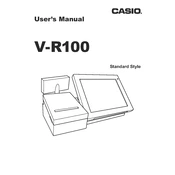
Casio V-R100 Cash Register manual cover
Pages 36
Year 0
Language(s)
English en

Casio V-R100 Cash Register Specification

The Casio V-R100 Cash Register is an advanced point-of-sale solution designed for small to medium-sized businesses seeking efficiency and versatility. Powered by the Android operating system, it provides a user-friendly interface with enhanced customization options. The device features a 10.4-inch color LCD touchscreen, offering intuitive navigation and a clear display of transaction details. Its hardware is robust, incorporating a built-in high-speed thermal printer that supports receipt printing at a swift rate, ensuring minimal wait times for customers.

This cash register includes a high-capacity memory system to store extensive product databases, facilitating quick item lookup and management. It is equipped with multiple connectivity options, including Ethernet, USB, and serial ports, enabling seamless integration with other business devices like barcode scanners and payment terminals. The V-R100 supports wireless connectivity options for cloud-based data management, enhancing the flexibility and scalability of business operations.

Security is prioritized with features such as advanced user management, allowing multiple operator profiles with customizable access permissions. This ensures that each user interacts with the system according to their role, safeguarding sensitive business information. The device is also designed to handle various payment methods, including cash, credit card, and contactless payments, catering to diverse customer preferences.

Overall, the Casio V-R100 Cash Register combines powerful hardware with flexible software capabilities, making it a versatile solution for modern retail environments. Its adaptability to different business needs, along with its comprehensive functionality, positions it as a valuable asset for businesses aiming to streamline their sales processes and enhance customer service.

Casio V-R100 Cash Register F.A.Q.

How do I perform a basic setup for the Casio V-R100 Cash Register?

To perform a basic setup, start by connecting the power supply and turning on the device. Follow the on-screen instructions to set the date and time, configure tax rates, and program the departments and PLUs.

How can I troubleshoot a printer error on the Casio V-R100?

First, ensure the printer cover is securely closed. Check for paper jams or obstructions. Verify that the paper is correctly loaded and that the printer has sufficient paper. Restart the register if the issue persists.

What steps should I follow to back up sales data on the V-R100?

Access the system menu and navigate to the data backup option. Connect a USB drive to the register and select 'Backup to USB'. Confirm the action and wait until the backup process is complete.

How do I change the receipt header on the Casio V-R100?

Go to the system settings and select 'Receipt Settings'. Enter the desired text for the receipt header and save the changes. Ensure you print a test receipt to confirm the updated information.

What should I do if the touchscreen is unresponsive?

First, clean the screen with a soft, dry cloth. If the issue persists, restart the device. For ongoing problems, check for software updates or perform a factory reset if necessary.

How can I add a new user account on the V-R100?

Access the user management settings from the main menu. Select 'Add User', input the necessary information, and set permissions. Save the new user profile to complete the process.

What maintenance is required for the Casio V-R100 Cash Register?

Regularly clean the exterior and touchscreen, check and replace the printer paper, and ensure software is updated. Periodically back up data and inspect cables and connections for wear.

How do I update the software on the Casio V-R100?

Connect the register to the internet. Navigate to the software update section in the system menu, and select 'Check for Updates'. Follow the prompts to download and install any available updates.

What should I do if the V-R100 is not powering on?

Check that the power cable is securely connected to both the register and the power outlet. Verify that the outlet is functional. If the device still does not power on, consider testing with a different power cable or contacting technical support.

How can I generate a sales report on the Casio V-R100?

Access the 'Reports' menu and select the type of report you wish to generate. Specify the date range and any additional criteria, then select 'Generate'. The report will be displayed on-screen and can be printed if needed.