Casio TE-2200 User's Manual
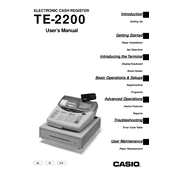
Casio TE-2200 Cash Register manual cover
Pages 114
Year 0
Language(s)
English en

Casio TE-2200 Cash Register Specification

The Casio TE-2200 Cash Register is a versatile point-of-sale solution designed for small to medium-sized retail environments. It features a user-friendly interface with a bright, multi-line LCD display, providing clear visibility of transaction details for both operators and customers. The cash register supports up to 2,000 PLUs (Price Look-Ups), allowing for efficient item management and sales tracking. It includes a robust memory capacity that facilitates the handling of complex transaction data and supports various sales functions such as discounts, returns, and tax calculations.

The TE-2200 is equipped with a thermal printer, ensuring fast and quiet receipt printing with a speed of approximately 14 lines per second. This model supports customizable receipt header messages, enhancing branding opportunities. It also features a secure, lockable cash drawer with multiple compartments for coins and bills, promoting efficient cash management.

Connectivity options include an RS-232C port, enabling integration with external devices like barcode scanners and PCs for improved inventory management and sales reporting. The register's software is designed for ease of programming, allowing quick setup and modification of item data and pricing. It supports multiple payment types, including cash, credit, and debit transactions, providing flexibility in customer payment methods.

Security is addressed through a clerk identification system, which tracks sales by individual operators, enhancing accountability. The Casio TE-2200 Cash Register is a reliable, efficient, and secure solution, ideal for businesses seeking to streamline their checkout process and improve operational efficiency.

Casio TE-2200 Cash Register F.A.Q.

How do I change the paper roll in the Casio TE-2200 cash register?

To change the paper roll, open the printer cover, remove the old roll, place a new roll on the holder with the paper coming from the bottom, and feed the paper into the printer slot. Close the cover after ensuring the paper feeds correctly.

What should I do if the cash register display shows an error message?

First, note the error code displayed. Refer to the user manual to understand the error code. Common solutions include checking paper jams, clearing memory errors, or resetting the register.

How can I program a new product into the Casio TE-2200?

Enter the program mode by turning the key to 'P'. Select 'PLU' programming, input the product details including code, name, and price, then save the entry.

What maintenance steps should be performed regularly on the Casio TE-2200?

Regular maintenance includes cleaning the cash register exterior, ensuring the printer head is free of debris, checking connections, and replacing paper rolls before they run out.

How do I perform a register reset on the Casio TE-2200?

To reset the register, turn the key to the 'OFF' position, unplug the unit, wait for a few seconds, plug it back in, and turn the key to the 'REG' position.

How can I generate a sales report on the Casio TE-2200?

Turn the key to the 'X' position for a read report or to the 'Z' position for a reset report. Press the relevant department or PLU button to print the sales report.

Why is the cash drawer not opening automatically after a sale?

Ensure that the drawer is not locked and the connection cable is securely plugged into the register. If the problem persists, consult the manual for troubleshooting electrical issues.

How do I change the time and date on the Casio TE-2200 cash register?

Switch the key to the 'P' position, access the system settings, enter the new date and time, and save the changes.

What steps should I take if the printer is not printing receipts?

Check if the paper roll is correctly installed and not empty. Ensure the printer cover is closed securely and no paper jams are present. Restart the register if necessary.

How can I set up tax rates on the Casio TE-2200?

Turn the key to the 'P' mode, access the tax settings, input the necessary tax rates, and save them to apply automatically to sales.