Casio TE-2400 User's Manual
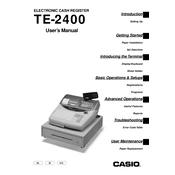
Casio TE-2400 Cash Register manual cover
Pages 114
Year 0
Language(s)
English en

Casio TE-2400 Cash Register Specification

The Casio TE-2400 Cash Register is designed to cater to the needs of medium-sized retail environments by combining functionality with ease of use. It features a robust alphanumeric display system, providing operators with a clear, illuminated interface that enhances transaction accuracy and efficiency. The cash register supports up to 2,000 PLUs (Price Look-Ups) and 99 departments, enabling comprehensive product categorization and streamlined inventory management. Equipped with a dual thermal printer, the TE-2400 ensures rapid, silent printing of receipts and reports, essential for maintaining smooth customer service and efficient backend operations.

The register is fitted with an adjustable operator display, offering a 10-line backlit LCD, and a customer-facing display for transaction transparency. Its keyboard is customizable with 72 keys, allowing for quick access to frequently used functions and items. Communication capabilities are enhanced through an integrated RS-232C port, facilitating connectivity with external devices such as barcode scanners and PCs, thus broadening its functionality and ease of data transfer.

Security is a priority, as evidenced by the multi-drawer capability and clerk interrupt function, which help manage multiple transactions and personnel simultaneously. Financial tracking is augmented through detailed sales reports and electronic journal functionality, accommodating up to 3,000 lines of transaction data storage. The Casio TE-2400's compact, durable design is well-suited for demanding retail environments, providing essential features like programmable tax tables, currency conversion, and a training mode for staff onboarding. Overall, the TE-2400 balances advanced operational features with user-friendly design, making it a reliable choice for retailers seeking efficiency and reliability in their point-of-sale systems.

Casio TE-2400 Cash Register F.A.Q.

How do I set the date and time on the Casio TE-2400 Cash Register?

To set the date and time, turn the key to the 'P' mode. Press '3' and then 'Sub Total'. Enter the date in the format MMDDYY and press 'Cash'. For the time, enter in the 24-hour format HHMM and press 'Cash'. Finally, press 'Sub Total' to save the settings.

What should I do if the cash register is not printing receipts?

First, check if the paper roll is correctly loaded and not jammed. Ensure the paper is thermal and the thermal side is correctly facing the print head. If the issue persists, verify that the printer cover is securely closed and check for any error messages on the display.

How can I reset the cashier password on the TE-2400?

To reset a cashier password, turn the key to 'P' mode. Enter '1002' and press 'Sub Total'. Then, press the corresponding cashier number, enter the new password, and press 'Cash'. Finish by pressing 'Sub Total'.

How do I perform a daily sales report on the TE-2400?

To print a daily sales report, turn the mode key to 'Z'. Press '1' and then 'Sub Total'. The report will print out, showing the total sales of the day.

What is the procedure to change the tax rate on the Casio TE-2400?

Switch the key to 'P' mode. Enter '200' followed by 'Sub Total'. Input the tax table number and press 'Cash'. Enter the new tax rate and again press 'Cash'. Finish by pressing 'Sub Total'.

How can I clear a paper jam in the Casio TE-2400 printer?

Open the printer cover and carefully remove the jammed paper. Ensure that no pieces are left inside. Reload the paper roll correctly and close the cover securely. Restart the register to clear any error messages.

Why does the display show an error message when entering amounts?

An error message during entry could indicate incorrect key sequence or exceeding the input limit. Check that you are following the correct procedure for the transaction and ensure that the amount is within allowable limits.

How can I program new items into the Casio TE-2400?

Switch to 'P' mode. Enter '100' and press 'Sub Total'. Enter the PLU number and press 'Cash'. Set the item price and press 'Cash'. Enter the item description using letter keys and press 'Cash'. Finish by pressing 'Sub Total'.

What maintenance should be regularly performed on the TE-2400?

Regular maintenance includes cleaning the printer head with a soft cloth, checking and replacing the paper roll as needed, and ensuring all keys are functioning smoothly. Periodically check for software updates or firmware upgrades.

How do I connect the TE-2400 to a PC for data management?

To connect to a PC, use the appropriate interface cable. Install the required driver software on the PC. Set the communication parameters on the register by turning the key to 'P' mode and configuring the settings as per the user manual.