Casio TK-T200 User's Manual
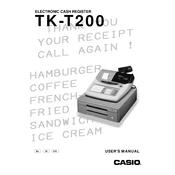
Casio TK-T200 Cash Register manual cover
Pages 104
Year 0
Language(s)
English en

Casio TK-T200 Cash Register Specification

The Casio TK-T200 Cash Register is designed to deliver efficient and reliable point-of-sale solutions for small to medium-sized businesses. It features a user-friendly interface with a high-visibility LCD screen that displays up to 12 characters, ensuring clear readability for both operators and customers. The register is equipped with a high-speed thermal printer that produces crisp, professional-quality receipts, enhancing customer service experience. It supports multiple currency operations, making it adaptable for various business environments.

The TK-T200 offers a robust memory capacity, allowing for the storage of up to 3,000 PLUs (Price Look-Ups) to accommodate a wide range of products and services. It includes an integrated cash drawer with a durable construction, designed to withstand high-frequency use and providing secure cash management. The register is compatible with barcode scanners and external printers, facilitating streamlined operations and improved transaction efficiency.

Security features include multiple clerk sign-on options and a comprehensive audit trail, enabling effective oversight of sales activities. The register allows for programmable tax tables and discounts, offering flexibility in pricing and promotions. It also supports various payment methods, including cash, credit, and debit transactions, catering to diverse customer preferences.

The Casio TK-T200 is designed with connectivity in mind, featuring ports for connecting to PCs and other peripheral devices, allowing for easy data transfer and expanded functionality. Its compact and ergonomic design ensures it fits neatly into any retail space without compromising on performance. The TK-T200 is an ideal choice for businesses seeking a reliable, easy-to-use, and efficient cash register solution.

Casio TK-T200 Cash Register F.A.Q.

How do I perform a basic setup for the Casio TK-T200 Cash Register?

To perform a basic setup, plug in the register, turn the mode switch to 'REG', and follow the on-screen prompts to set the date, time, and basic tax rates.

How can I program a new product into the Casio TK-T200?

Turn the mode switch to 'PGM', enter the PLU number, and input the product details such as price and description, then press the 'CA/AMT' button to save.

What steps should I follow to troubleshoot printing issues on the TK-T200?

Ensure the paper roll is installed correctly, check for paper jams, and confirm that the printer settings are correct in the register's programming mode.

How do I reset the Casio TK-T200 to factory settings?

Turn the mode switch to 'OFF', hold down the 'FEED' button, and turn the switch to 'PGM'. Release 'FEED' once you see '0' on the display.

How can I generate a sales report on the TK-T200?

Switch the mode to 'X' or 'Z', select the type of report needed, and press 'CA/AMT' to print the report.

What is the process for changing the receipt header on the TK-T200?

Go to the 'PGM' mode, access the 'Header Message' section, input the new header text using the keypad, and save changes by pressing 'CA/AMT'.

How do I replace the ink ribbon in the TK-T200 cash register?

Open the printer cover, remove the old ribbon cartridge, insert the new cartridge ensuring it is properly aligned, and replace the cover.

What should I do if the register display shows an error code?

Refer to the user manual for the specific error code meaning, ensure all transactions are completed correctly, and restart the register if needed.

Can I connect the TK-T200 to a computer for data management?

Yes, use the RS-232C port on the cash register to connect to a computer, and utilize compatible software for data management and analysis.

How do I change the tax rate on the Casio TK-T200?

In 'PGM' mode, navigate to the 'Tax' setting, enter the new tax rate, and confirm the changes by pressing 'CA/AMT'.