Casio TE-100 User's Manual
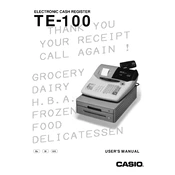
Casio TE-100 Cash Register manual cover
Pages 88
Year 0
Language(s)
English en

Casio TE-100 Cash Register Specification

The Casio TE-100 Cash Register is a compact and reliable device designed for small to medium-sized retail businesses. It features a user-friendly interface with a high-visibility LCD display, ensuring ease of operation for both the cashier and the customer. The cash register supports up to eight clerks, allowing multiple users to manage transactions seamlessly. It is equipped with a thermal printer that produces fast, quiet, and clear receipts, enhancing the customer experience.

The TE-100 offers a robust memory capacity that accommodates up to 1,200 PLUs (Price Look-Ups), providing flexibility in managing a diverse inventory. It also includes department keys for quick item categorization, facilitating efficient sales tracking and reporting. Security features include a multi-position key lock and clerk sign-on, ensuring controlled access and secure operation.

Connectivity options on the Casio TE-100 are straightforward, with a single port available for a cash drawer. The device is powered by an AC adapter, with a backup battery system to preserve sales data in the event of a power outage. The cash register's compact design makes it suitable for limited counter spaces, while its durable construction ensures longevity and reliability in everyday use.

Overall, the Casio TE-100 Cash Register combines essential functionality with ease of use, making it an ideal solution for retailers seeking an efficient and straightforward point-of-sale system. Its blend of practical features and robust performance supports effective business operations, ensuring accurate transaction management and customer satisfaction.

Casio TE-100 Cash Register F.A.Q.

How do I program the tax rate on the Casio TE-100 Cash Register?

To program the tax rate, turn the key to the 'PGM' position, enter the tax rate number, press 'TAX PGM' followed by the rate amount, and then press 'CA/AMT'.

What should I do if the display shows an error message?

If an error message appears, press 'C' to clear the error. If it persists, turn the register off and on. Consult the user manual for specific error codes.

How can I reset the Casio TE-100 to its default settings?

To reset to default settings, turn the key to the 'OFF' position, press and hold the 'C' key while turning the key to 'PGM'. Release the 'C' key when the display turns on.

How do I replace the receipt paper roll in the cash register?

Lift the paper cover, remove the empty roll, insert a new roll ensuring the paper feeds from the bottom, and close the cover. Press the 'FEED' button to test.

What steps should I take for a daily sales report?

To print a daily sales report, turn the key to the 'Z' position and press 'CA/AMT'. The register will print the report automatically.

How can I change the date and time on my cash register?

Turn the key to 'PGM', press '3', then 'SUBTOTAL'. Enter the date in MMDDYY format, press 'X/TIME', enter the time in 24-hour format, and press 'SUBTOTAL'.

Why is my cash drawer not opening automatically?

Ensure the drawer is not locked. If it remains closed, check the RJ cable connection to the cash register. Testing with a manual key can help diagnose mechanical issues.

How do I set up department keys on the TE-100?

Turn the key to 'PGM', press the department key you wish to program, enter the price or code, and press 'CA/AMT'. Repeat for each department key.

What maintenance is required to ensure the register functions properly?

Regularly clean the keyboard and exterior, replace paper rolls as needed, and back up important data. Check connections and battery life periodically.

How do I correct an incorrect transaction entry?

Press the 'VOID' button immediately after the incorrect entry, then re-enter the transaction correctly. For completed entries, perform a refund transaction.