Casio SEC450 User's Manual
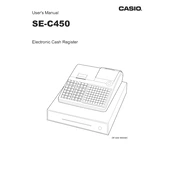
Casio SEC450 Cash Register manual cover
Pages 134
Year 0
Language(s)
English en

Casio SEC450 Cash Register Specification

The Casio SEC450 Cash Register is designed for small to medium-sized retail businesses, offering a blend of functionality and efficiency. It features a robust alphanumeric LCD display, both for the operator and the customer, ensuring clear transaction visibility. The register is equipped with a high-speed thermal printer capable of producing detailed receipts with customizable logos and promotional messages. It supports up to 3,000 PLUs, allowing for extensive product cataloging and inventory management. The cash register includes multiple payment options, such as cash, credit, and debit, enhancing transaction flexibility. It supports up to 200 clerks, accommodating businesses with a large number of employees. The SEC450 integrates with barcode scanners for quick item entry and includes two RS-232 ports for peripheral connectivity, facilitating seamless integration with other business systems. The design incorporates a large cash drawer with five bill and five coin compartments for organized cash handling. It also features advanced security measures, including clerk interrupt and transaction void functions to prevent unauthorized access and errors. The register's programmable tax rates and department keys allow for easy adaptation to various business needs and local tax regulations. With its comprehensive reporting capabilities, the SEC450 provides detailed sales analysis, helping business owners make informed decisions. Its durable construction and intuitive interface make the Casio SEC450 a reliable choice for retailers seeking a versatile and efficient point-of-sale solution.

Casio SEC450 Cash Register F.A.Q.

How do I reset the Casio SEC450 cash register to factory settings?

To reset your Casio SEC450 to factory settings, turn the key to the 'P' position, press and hold the 'CLR' button while turning the key to the 'OFF' position, and then turn it back to 'P'. Follow any on-screen prompts to complete the reset.

How can I change the receipt paper on the Casio SEC450?

Open the printer cover, remove the old paper roll, insert a new roll ensuring the paper feeds from the bottom, and close the cover. Ensure the paper feeds correctly by pressing the paper feed button.

What should I do if the cash register drawer won't open?

Check if the 'No Sale' button is functional and that there are no paper jams. If the issue persists, inspect the drawer mechanism for any obstructions or damage. Consider consulting the user manual or contacting support if necessary.

How do I program a new product into the Casio SEC450?

Turn the key to the 'PGM' position. Use the numeric keypad to enter the product code, then press 'PLU'. Enter the product details, including price and description, and confirm by pressing 'CA/AMT'.

How can I troubleshoot a printer error on the Casio SEC450?

Ensure the paper roll is installed correctly and the printer cover is securely closed. Check for any paper jams or obstructions in the printer path. Restart the cash register if the error persists.

What steps should I follow to perform a daily sales report on the Casio SEC450?

Turn the key to the 'Z' position, then press 'CASH'. The register will print out the daily sales report automatically. Ensure you have enough paper before running the report.

How do I update the date and time on my Casio SEC450?

Turn the key to the 'PGM' mode. Press '2', then 'SUBTOTAL'. Enter the new date and time in the format YYMMDDHHMM, and press 'SUBTOTAL' again to save the changes.

Why is my Casio SEC450 not turning on?

Ensure the power cord is securely connected and the outlet is functioning. Check the power switch and inspect the power cable for damage. If it still doesn't turn on, consider checking the internal fuse or contacting technical support.

How do I perform a tax rate change on the Casio SEC450?

Turn the key to 'PGM', press '3', then 'SUBTOTAL'. Enter the tax table number, followed by the new tax rate, and press 'CASH' to confirm. Finish by pressing 'SUBTOTAL' to save.

What is the procedure for cleaning the Casio SEC450 cash register?

Turn off the register and unplug it. Use a soft, damp cloth to clean the exterior surfaces. Avoid using harsh chemicals. Clean the keyboard and display gently, and ensure no moisture enters the printer or any openings.