Casio SRC4500 Quick Start Guide
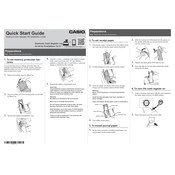
Casio SRC4500 Cash Register manual cover
Pages 2
Year 0
Language(s)
English en

Casio SRC4500 Cash Register Specification

The Casio SRC4500 Cash Register is designed to provide versatile and efficient point-of-sale solutions for small to medium-sized businesses. It features a user-friendly interface with a large, clear LCD display to ensure easy operation and quick transaction processing. The register supports up to 3,000 PLUs (Price Look-Ups) and can accommodate 70 department keys, providing extensive categorization and tracking for various items and services. Additionally, the SRC4500 offers multi-language support, catering to diverse business environments.

Equipped with a fast thermal printer, the SRC4500 ensures rapid receipt generation with customizable receipt headers to enhance branding and customer interaction. The cash register includes a secure, robust cash drawer with five bill compartments and eight coin slots, ensuring organized cash management. For added security and efficiency, the register supports clerk management with four clerical sign-on options and the ability to track sales by cashier.

Connectivity is enhanced through an SD card slot, allowing for easy data transfer and backup, as well as software updates. The Casio SRC4500 also supports electronic journal functionality, enabling detailed transaction logging without the need for physical receipts. This eco-friendly feature aids in reducing paper usage while maintaining accurate sales records.

The SRC4500 is powered by an internal rechargeable battery, providing dependable operation during power outages. It is designed for durability and longevity, making it a reliable choice for retail environments. With its comprehensive features and intuitive design, the Casio SRC4500 Cash Register is an ideal solution for businesses seeking a robust and adaptable point-of-sale system.

Casio SRC4500 Cash Register F.A.Q.

How do I perform a basic setup of the Casio SRC4500 Cash Register?

To perform a basic setup, plug in the cash register, turn the key to the 'REG' position, and follow the instructions on the display to set the date and time. Refer to the manual for detailed programming instructions.

How can I reset my Casio SRC4500 to factory settings?

To reset to factory settings, turn the key to the 'OFF' position, press and hold the 'CLEAR' button, and turn the key to 'P' while holding the button. Release the 'CLEAR' button once the display shows 'Reset'.

What should I do if the cash register drawer doesn't open?

First, ensure the register is plugged in and powered on. Check for any jams or obstructions. If the problem persists, use the emergency drawer opening lever located underneath the register.

How do I change the receipt paper on the Casio SRC4500?

To change the receipt paper, open the printer cover, remove the empty paper roll, place a new roll in the compartment with the paper feeding from the bottom, and close the cover. Advance the paper using the 'FEED' button.

How can I program new items into my Casio SRC4500 cash register?

Turn the key to the 'PGM' position, select 'PLU' programming, and follow the prompts to enter item names, prices, and assign them to departments. Save your changes before exiting.

What steps should I take if the display shows an error code?

Refer to the user manual to identify the specific error code. Most issues can be resolved by clearing the error with the 'CLEAR' button, checking paper jams, or resetting the register.

How do I perform a daily sales report on the Casio SRC4500?

Turn the key to the 'Z' position, press the 'CASH' button, and the register will print out a summary of daily sales. Ensure the paper roll is loaded to avoid missing any report details.

How can I troubleshoot connectivity issues with the Casio SRC4500?

Ensure all cables are securely attached and that your network settings are correctly configured. Restart the cash register and any connected devices. If issues persist, consult network troubleshooting sections in the manual.

What maintenance is required for the Casio SRC4500?

Regularly clean the cash register using a soft, dry cloth. Replace paper rolls and ink ribbons as needed. Periodically check and tighten any loose screws or components.

How do I update the firmware on the Casio SRC4500?

Check the Casio website for any available firmware updates. Follow the instructions provided with the update, which typically involve downloading the update to a USB drive and applying it via the register's USB port.